Designing a display board
How to design a display board
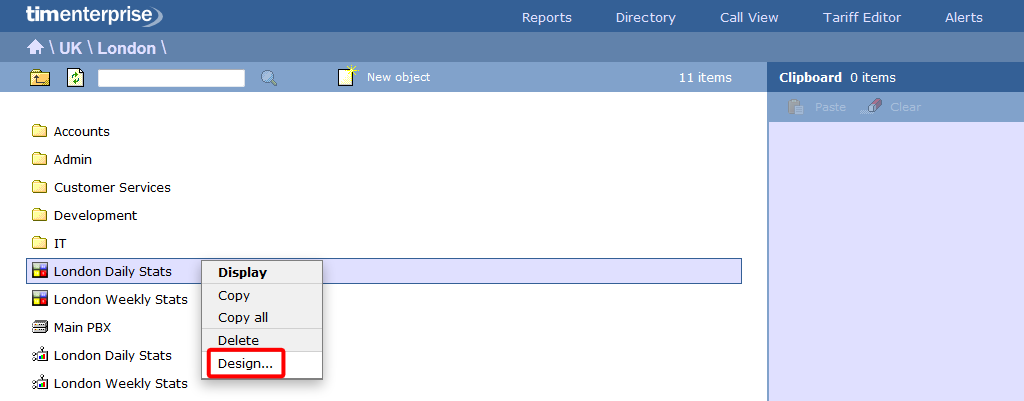
To design a display board, locate the object in the Directory, click on it and select Design from the drop-down list, as shown below:
If you opted to design your display board from scratch, the following screen will appear:
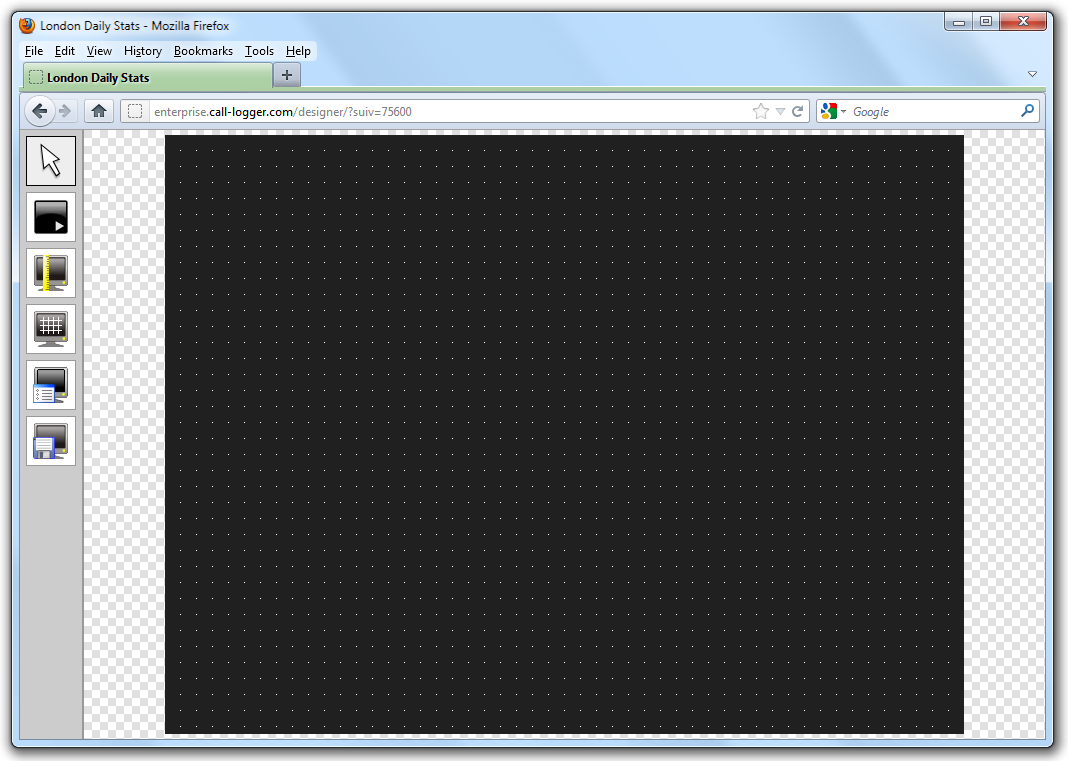
To add or edit panels in your display board, use the toolbar on the left-hand side of the panel. Each toolbar button is described below:
The pointer button

The pointer (selector) button allows you to select an object and alter its properties.
The panel type button

This button allows you to select the type of panel you want to add to the canvas. The available panel types are presented below:


The aspect ratio button

This button allows you to change the ratio of the screen. The defaults available are 16:10 and 4:3, but the board can be stretched to any value you set.
The grid button

The grid button is a simple toggle switch that shows or hides the grid.
The canvas settings button

This button allows you to change the background properties of the canvas.
The save button

This button allows you to save any changes made to the canvas.